
How to Display Your Company Logo on Your Primavera P6 Printout: 3 Easy Steps
Brand your P6 schedules in 3 quick steps. A beginner-friendly walkthrough for adding your company logo using Stored Images.
Introduction
Before you start, grab a copy of your company logo. PNG is the format you want here. A few reasons why:
- PNGs support transparent backgrounds, so the logo blends cleanly with whatever's behind it (no awkward white box like you get with JPGs).
- PNGs hold their crispness when P6 resizes them for the printout.
- Most design teams have a PNG version of your logo ready to go. If you only have a JPG, ask for the PNG — takes them thirty seconds.
Once you've got a PNG saved somewhere on your computer, you're ready to go. We'll knock this out in three steps.
Step 1: Add the Logo to P6's Stored Images
Stored Images allow you to load a company logo into Primavera P6 once and reuse it across multiple projects. This is much more efficient than searching for the logo file every time you create a new report or start a new project. Using Stored Images also helps maintain consistency across schedules and reporting packages.
From the top menu, click Admin, then Stored Images. A small dialog opens. Hit Add, type a name like "Company Logo," and click the folder icon to point P6 at your PNG. Click OK. Done. Your logo now lives inside P6 itself.
(See Figure 1 below.)
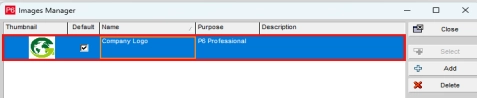
Figure 1: The Stored Images library with the logo loaded in.
Step 2: Drop the Logo Into the Footer
Now open the project you want to brand. From the menu bar, click File, then Page Setup. A dialog pops up with a row of tabs across the top. Click Footer.
You'll see the footer is split into three boxes — left, center, right. Click whichever one you want the logo in. Bottom-left is a clean, professional spot for branding. Then look for the Picture button and click it. P6 pulls up your Stored Images list. Pick the logo you just added. Click OK.
(See Figure 2 below.)
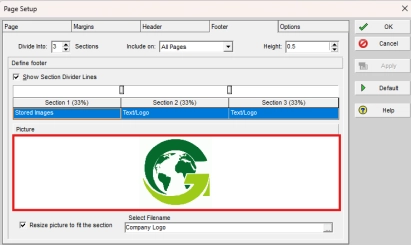
Figure 2: Logo placed in the footer's bottom-left section.
Step 3: Check Your Work in Print Preview
Before you call it done, take one more look. With Page Setup closed, click File > Print Preview. You should see your logo sitting cleanly in the bottom-left corner of every page. If something looks off — too big, too small, in the wrong spot — head back into Page Setup and tweak it before you print anything for real.
(See Figure 3 below.)
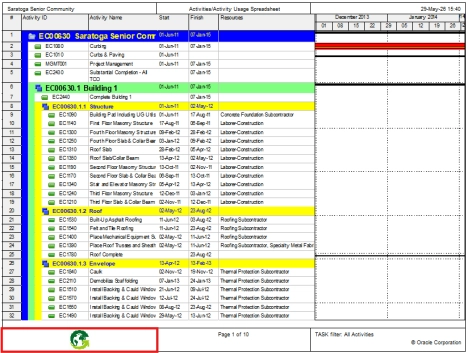
Figure 3: Print Preview showing the Global PM logo in the bottom-left corner of the footer.
A Couple of Quick Tips
Save the source PNG on a shared drive. P6 stores the image inside the database, but keep the original file somewhere your team can reach — like \\Server\Shared\P6_Logos\. Anyone setting up a new server or refreshing the logo can grab it without digging through emails.
Save your layout and reuse it across projects. Once the footer looks right, lock it in. Go to View > Layout > Save As and name it something obvious — "Company Standard Footer" works. Future projects can start from that template for the same logo, same placement, same look.
That's It
Just three steps and about fifteen minutes of setup can save you time on every future project. Once your logo is stored in P6, it can automatically appear on your printouts and reports, giving them a cleaner, more professional look that reflects your company’s standards instead of P6’s default formatting.
Try setting it up on one of your projects this week. After using it a few times, you’ll likely wonder why you didn’t start doing it sooner.